Filter Offers in Book a Reservation Screen
Stay allows users to filter offers in the Book a Reservation screen on the click of the Check Rates button.
-
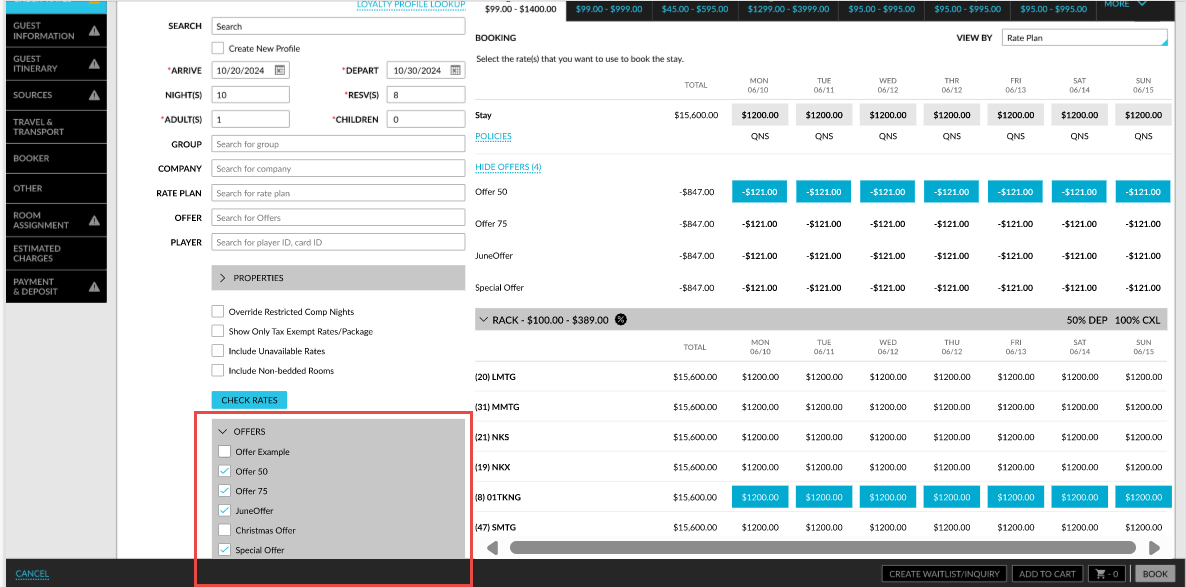
The filter option, Offers, in the Book a Reservation screen is used to filter offers. When users select the arrival and departure dates of a reservation and click Check Rates, the Offers filter is displayed below the Check Rates button. An accordion is displayed for this filter option. When the accordion is expanded, all the active offers available at the property are displayed. Based on the selected offers, the rate plans that are associated with the selected offers are displayed.
-
The offers applicable for the selected date range will be displayed above the rate plan/room type.
-
Users will no longer be required to click the Show Offers hyperlink to view the offers. When multiple offers are associated with a single rate plan, all the associated offers are displayed once the rate plan and room types are selected. Users can select the preferred offer to be applied to the reservation and proceed with the booking.
Users can continue to search for an offer by entering the offer name or code in the Offer field of the Book a Reservation screen. Both single or multiple offers can be searched for by entering the offer names/code separated by a comma. When users enter an offer name or code in the Offer field, only the offer names/code entered in this field are displayed when users expand the accordion for the Offers filter.
Users can also continue to book reservations with multiple nights, where an offer is applied to certain nights and the remaining nights are booked using a rate plan with no offers associated. In this case, after selecting an offer, users must select additional rate plans from the Rate Plan filter for the remaining stay dates.
The following table lists the various combinations in which users can search for offers once Check Rates is clicked in the Book a Reservation screen:
|
Offer Field |
Rate Plan Field |
Rate Plans Filter |
Offers Filter |
Behaviour |
|---|---|---|---|---|
|
No |
No |
No |
No |
All offers applicable for the selected date range are displayed. |
|
No |
No |
No |
Yes |
All rate plans associated with the offers selected in the Offers filter are displayed. |
|
No |
No |
Yes |
No |
All rate plans selected in the Rate Plans filter are displayed. |
|
No |
No |
Yes |
Yes |
The rate plans selected in the Rate Plans filter associated with the offers selected in the Offers filter are displayed. |
|
Yes |
Yes |
No |
No |
The rate plan entered in the Rate Plan field is displayed. If the offer entered in the Offer field is associated with the rate plan, the offer is displayed. Else, the message, No offers available, will be displayed. Both the Rate Plans and Offers filters will display only the rate plans and offers entered in the text input fields. |
|
Yes |
Yes |
No |
Yes |
The rate plan entered in the Rate Plan field is displayed. If the offer entered in the Offer field is associated with the rate plan, the offer is displayed. Else, the message, No offers available, will be displayed. Both the Rate Plans and Offers filters will display only the rate plans and offers entered in the text input fields. |
|
Yes |
Yes |
Yes |
No |
The rate plan entered in the Rate Plan field is displayed. If the offer entered in the Offer field is associated with the rate plan, the offer is displayed. Else, the message, No offers available, will be displayed. Both the Rate Plans and Offers filters will display only the rate plans and offers entered in the text input fields. |
|
Yes |
Yes |
Yes |
Yes |
The rate plan entered in the Rate Plan field is displayed. If the offer entered in the Offer field is associated with the rate plan, the offer is displayed. Else, the message, No offers available, will be displayed. Both the Rate Plans and Offers filters will display only the rate plans and offers entered in the text input fields. |
|
No |
Yes |
No |
No |
The rate plan entered in the Rate Plan field is displayed. When users select rates within the rate plan, all offers associated with the rate plan are displayed. |
|
No |
Yes |
No |
Yes |
The rate plan entered in the Rate Plan field is displayed. If the offer entered in the Offers filter is associated with the rate plan, the offer is displayed. Else, the message, No offers available, will be displayed. |
|
No |
Yes |
Yes |
No |
The rate plan entered in the Rate Plan field is displayed. When users select rates within the rate plan, all offers associated with the rate plan are displayed. The rate plans entered in the Rate Plan field are displayed in the Rate Plans filter. |
|
No |
Yes |
Yes |
Yes |
The rate plan entered in the Rate Plan field is displayed. If the offer selected in the Offers filter is associated with the rate plan, the offer is displayed. Else, the message, No offers available, will be displayed. Only the rate plans entered in the Rate Plan field are displayed in the Rate Plans filter. |
|
Yes |
No |
No |
No |
All rate plans are displayed. If the offer entered in the Offer field is associated with the rate plan, the offer is displayed. Else, the message, No offers available, will be displayed. |
|
Yes |
No |
No |
Yes |
All rate plans associated with the offer are displayed. If the offer entered in the Offer field is associated with the rate plan, the offer is displayed. Else, the message, No offers available, will be displayed. |
|
Yes |
No |
Yes |
No |
The rate plans selected in the Rate Plans filter are displayed. If the offer entered in the Offer field is associated with the rate plan, the offer is displayed. Else, the message, No offers available, will be displayed. |
|
Yes |
No |
Yes |
Yes |
The selected rate plans are displayed. If the offer entered in the Offer field is associated with the rate plan, the offer is displayed. Else, the message, No offers available, will be displayed. |
When no results are found for the selected combination, the message, No results found, is displayed.
When users search for the admin and casino offers available for a patron by entering the patron ID in the Player field of the Book a Reservation screen, all the admin and casino offers available for the patron are displayed as per the existing functionality when the Show all offers checkbox is selected. The following table lists the various scenarios in which admin and casino offers are displayed:
|
Enter Player ID |
Show all offers checkbox |
Behaviour |
|---|---|---|
|
No |
No |
No offers are displayed. |
|
No |
Yes |
All offers (promotional, admin, and casino) are displayed. |
|
Yes |
No |
All casino offers applicable for the patron ID are displayed. |
|
Yes |
Yes |
All offers (promotional, admin, and casino) applicable for the patron ID are displayed. |
Whenever the Override Restricted Comp Nights checkbox is selected or deselected, the offers in the Offers filter are reloaded. When no offer is selected in the Offers filter, users must click on the Show Offers hyperlink to view the offers as per the existing functionality.